

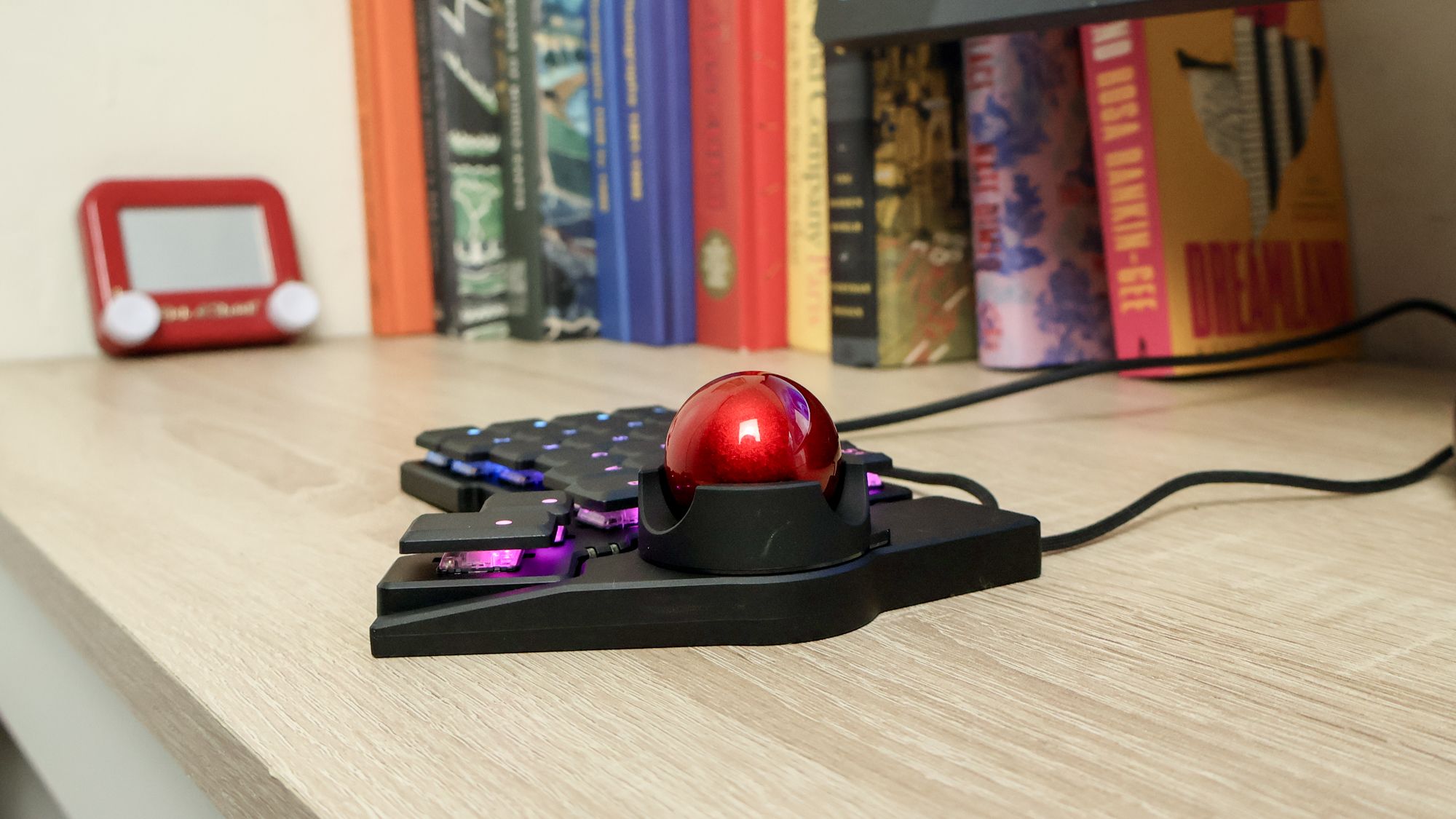
I haven’t lifted my hands off my keyboard in nearly an hour, and I’m loving it.
The folks at ZSA just sent over one of their split. low-profile mechanical keyboards with a new trackpad module packed in, and after a few days with it, I’m falling in love with the feeling of moving my mouse with just a flick of the thumb.
You may like
So when the company sent over their smaller, more portable Voyager split mechanical keyboard I was eager to see how it types — both at home on the road. The Voyager is marketed as being more convenient for use with a laptop, see, and I’m curious about how nice it will feel to use on hotel desks, coffee shop tables and on my lap.
I keep rollin’, rollin’, rollin’
(Image credit: Future)
Having a trackball on the keyboard saves me a bit of time and helps me feel more focused and efficient.”
I’m going to be working on a full review of the Voyager, but right off the bat I was intrgued at how adding on the optional Navigator trackball module changed the feel of using a split keyboard.
I don’t know about you, but I’ve been using a keyboard and mouse for 4-12 hours a day since I was in my early teens. Even as a kid I occasionally found my hands and wrists would ache after extended homework (read: covert gaming) sessions at the PC, and I learned that moving ’em around was a big help.
Because of that I’ve been dubious about the notion of bolting a trackball to my keyboard. I already feel like my hands are tented over my desk too long every day to begin with, so why would I want to spare my right mitt the exercise of hopping over to the mouse every few moments?
As it turns out, the answer is simple: having a trackball on the keyboard saves me a bit of time and helps me feel more focused and efficient while cruising through a workday.
You may like
The Navigator trackball module snaps magnetically into place on either side of the Voyager split keyboard, so it’s pretty versatile and you can swap hands if your thumb gets tired. (Image credit: Future)
After I attached the Navigator module to the left half of the Voyager (the trackball snaps magnetically to either side of the ‘board) and got over the initial learning curve of being able to control the cursor with my thumb, I quickly grew enamored of the gadget.
Admittedly I had to give up two of the keys on the 52-key Voyager to stand in for left-click and right-click, but being able to scroll and click without taking my hands off the ‘board feels great. I’m sure I’m not actually getting that much more done in a given day, but I feel like I’m moving faster and flipping through apps and tasks with ease.
However, I’m keenly aware this could be just a honeymoon period. I’m already a little concerned that the Voyager is simply too small for my big hands (not a problem for everyone obviously) and I’m nervous that having my thumb doing a lot more exercise is going to lead to strain. Have I simply signed myself up to enter some bold new realm of metacarpal agony?
I’m looking forward to finding out. I have high hopes because ZSA’s ‘boards have a reputation for being adjustable and customizable, and indeed the company has already released a 3D-printable shell you can print and use to adjust where the trackball module attaches to the keyboard. And with a trackpad variant of the Navigator module coming soon, I think the Voyager keyboard is only going to get more adaptable and useful.
Stay tuned for my full review!
Follow Tom’s Guide on Google News and add us as a preferred source to get our up-to-date news, analysis, and reviews in your feeds.
More from Tom’s Guide
Back to Gaming Laptops
SORT BYPrice (low to high)Price (high to low)Product Name (A to Z)Product Name (Z to A)Retailer name (A to Z)Retailer name (Z to A)
