Close Menu
Must Have Gadgets –

    Subscribe to Updates

    Get the latest creative news from FooBar about art, design and business.

    What's Hot

    The best cloud hosting services for 2025: Expert tested

    December 11, 2025

    I Found the Best iPhone 16 Deals; Trade In Your Old Phone for Massive Savings

    December 11, 2025

    The real reason why Android updates are so forgettable now

    December 11, 2025
    Facebook X (Twitter) Instagram
    Must Have Gadgets –
    Trending
    • The best cloud hosting services for 2025: Expert tested
    • I Found the Best iPhone 16 Deals; Trade In Your Old Phone for Massive Savings
    • The real reason why Android updates are so forgettable now
    • Harness hits $5.5B valuation with $240M raise to automate AI’s ‘after-code’ gap
    • After Months of Testing Smart Rings, This Is the Only One I Think You Should Buy
    • Cable channel subscribers grew for the first time in 8 years last quarter
    • 6 Garmin watches are at their lowest ever price — these are the deals I’d shop now
    • How to block notification ads on your Samsung phone
    • Home
    • Shop
      • Earbuds & Headphones
      • Smartwatches
      • Mobile Accessories
      • Smart Home Devices
      • Laptops & Tablets
    • Gadget Reviews
    • How-To Guides
    • Mobile Accessories
    • Smart Devices
    • More
      • Top Deals
      • Smart Home
      • Tech News
      • Trending Tech
    Facebook X (Twitter) Instagram
    Must Have Gadgets –
    Home»How-To Guides»How to block notification ads on your Samsung phone
    How-To Guides

    How to block notification ads on your Samsung phone

    adminBy adminDecember 11, 2025No Comments3 Mins Read
    Facebook Twitter Pinterest LinkedIn Tumblr Email
    How to block notification ads on your Samsung phone
    Share
    Facebook Twitter LinkedIn Pinterest Email

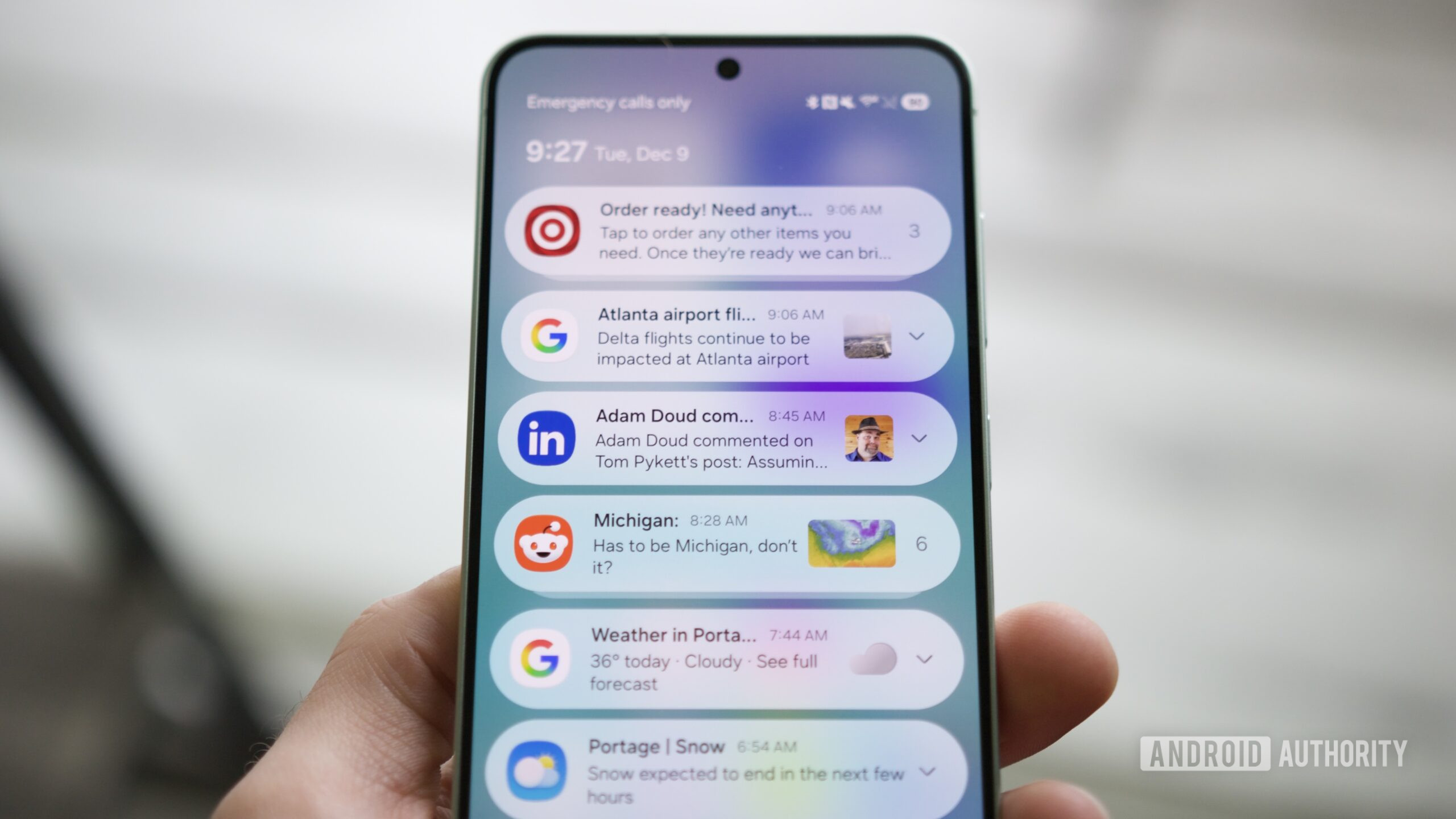
    If you have a smartphone, you almost certainly have to deal with apps sending you ad notifications. Whether it’s for a new product, an ongoing sale, or whatever else, few things are as annoying as having your notifications filled with advertising like this.

    But what if I told you that you could now filter out those advertising notifications so you don’t receive them? If you have a Samsung phone running the One UI 8.5 beta, that’s now possible thanks to Samsung’s new “Block apps with excessive ads” setting. It’s buried deep in One UI 8.5, but it could very well be the update’s best-kept secret. Here’s how to find and use it.

    What do you think of One UI 8.5 beta so far?

    668 votes

    Love it! It looks like a great update.

    47%

    It’s good, but there’s room for improvement.

    21%

    It’s okay, I don’t see anything special.

    19%

    I’m not impressed by what I’ve seen.

    13%

    How to block advertising notifications in One UI 8.5

    Joe Maring / Android Authority

    The first thing to do is ensure you have a Samsung phone running the One UI 8.5 beta. You can download the One UI 8.5 beta now for the Galaxy S25, Galaxy S25 Plus, and Galaxy S25 Ultra. If you don’t have one of those phones, or if you prefer not to use beta software, you’ll get this feature when One UI 8.5 rolls out to everyone — likely in early 2026.

    Assuming you do have One UI 8.5 on your phone, here’s where to find the ad-blocking feature:

    1. Open the Settings app on your phone.
    2. Scroll down, then tap Device care.
    3. Tap the three dots in the upper-right corner.
    4. Tap Settings.
    5. Tap Block apps with excessive ads.

    Samsung’s ad-blocking feature is enabled by default using the Basic blocking mode. With basic blocking, any apps Samsung has already flagged as sending frequent/excessive ads are blocked whenever they’re detected on your phone. Samsung doesn’t say which apps these include or how many there are, but they’re presumably apps that are well-known or notorious for their notification advertising.

    Additionally, if you want maximum blocking power, you can tap the toggle at the bottom of the page to turn on Intelligent blocking, a super-charged version of the basic blocking that’s enabled by default. With intelligent blocking, all your notifications are analyzed in real time to determine whether they’re ads; if they are and they’re frequent, they’re blocked.

    Some people may not love the idea of Samsung analyzing their notifications like this, and if that includes you, you can continue on with basic blocking. But if you want to limit ad notifications as much as possible, you’ll probably want to activate intelligent blocking.

    Joe Maring / Android Authority

    Finally, you can tap Excessive alerts near the top of the screen to view any apps Samsung has marked as sending excessive advertising notifications.

    I’ve only had One UI 8.5 on my Galaxy S25 for a couple of days, so it’s too early to tell how effective (or not) this excessive ad-blocking feature is. Still, as someone who can’t stand ad notifications, I’ve turned on intelligent blocking and am letting Samsung block as many advertisements as possible. And if you hate ads as much as I do, you’ll probably want to do the same.

    Don’t want to miss the best from Android Authority?

    Thank you for being part of our community. Read our Comment Policy before posting.

    Ads Block notification Phone Samsung
    Share. Facebook Twitter Pinterest LinkedIn Tumblr Email
    admin
    • Website

    Related Posts

    The best cloud hosting services for 2025: Expert tested

    December 11, 2025

    I Found the Best iPhone 16 Deals; Trade In Your Old Phone for Massive Savings

    December 11, 2025

    4 foreign sci-fi films on streaming that are genuinely mind-bending

    December 11, 2025
    Leave A Reply Cancel Reply

    Top Posts

    The best cloud hosting services for 2025: Expert tested

    December 11, 2025

    OnePlus 15’s massive battery and fast charging are going global

    November 6, 2025

    LG Studio Smart 3-Door French Door Refrigerator Review: Cool Customer

    November 6, 2025
    Stay In Touch
    • Facebook
    • YouTube
    • TikTok
    • WhatsApp
    • Twitter
    • Instagram
    Latest Reviews
    How-To Guides

    You’re not using Android Auto properly until you try these Google Assistant routines

    By adminNovember 6, 20250
    Gadget Reviews

    OnePlus 15’s massive battery and fast charging are going global

    By adminNovember 6, 20250
    Tech News

    LG Studio Smart 3-Door French Door Refrigerator Review: Cool Customer

    By adminNovember 6, 20250

    Subscribe to Updates

    Get the latest tech news from FooBar about tech, design and biz.

    Latest Post

    The best cloud hosting services for 2025: Expert tested

    December 11, 2025

    I Found the Best iPhone 16 Deals; Trade In Your Old Phone for Massive Savings

    December 11, 2025

    The real reason why Android updates are so forgettable now

    December 11, 2025
    Recent Posts
    • The best cloud hosting services for 2025: Expert tested
    • I Found the Best iPhone 16 Deals; Trade In Your Old Phone for Massive Savings
    • The real reason why Android updates are so forgettable now
    • Harness hits $5.5B valuation with $240M raise to automate AI’s ‘after-code’ gap
    • After Months of Testing Smart Rings, This Is the Only One I Think You Should Buy

    Subscribe to Updates

    Get the latest creative news from FooBar about art, design and business.

    Facebook
    • About Us
    • Contact Us
    • Privacy Policy
    • Terms and Conditions
    • Disclaimer
    © 2025 must-have-gadgets.

    Type above and press Enter to search. Press Esc to cancel.